
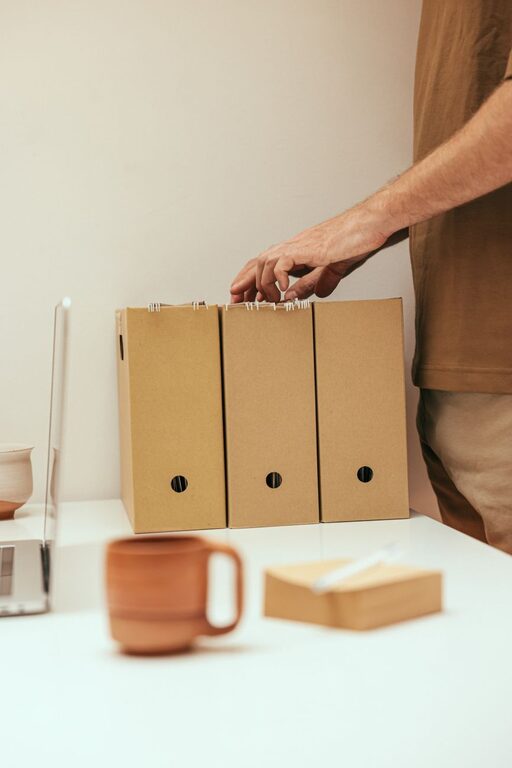
Organizing files on your computer can seem daunting, especially if you’ve accumulated years of documents, photos, and downloads. A well-organized file system, however, can save you time, reduce stress, and improve your overall productivity. Whether you’re a student, professional, or casual user, these practical tips will help you create a clean and easy-to-navigate digital workspace.
Why Organize Your Files?
Before diving into the tips, it’s helpful to understand why organizing files matters:
– Find files quickly: A good system means less time searching.
– Protect important documents: Prevent losing files by knowing where they are.
– Maintain computer performance: A cluttered drive can slow down your device.
– Simplify backups: Backing up is easier when files are well organized.
Now, let’s explore actionable ways to get your files in order.
1. Create a Logical Folder Structure
Start by designing a folder system that makes sense to you.
Use Broad Categories
Create main folders based on broad topics such as:
– Work
– Personal
– Finances
– Photos
– Projects
Use Subfolders for Details
Inside each main folder, create subfolders for specific topics or dates. For example, within “Work,” you might have:
– Reports
– Presentations
– Meeting Notes
Keep Folder Names Consistent
Choose a naming style and stick to it. For example, use all lowercase or capitalize the first letter of each word. Avoid spaces if you want to keep names simple, or use underscores or hyphens instead.
2. Name Your Files Clearly
File names are crucial for easy searching.
Be Descriptive
Instead of vague names like “document1.docx,” use descriptive names such as “Q2_Sales_Report_2024.docx.”
Include Dates When Relevant
Adding dates in the format YYYY-MM-DD keeps files in chronological order, like “2024-06-15_Project_Plan.pdf.”
Avoid Special Characters
Characters like / \ * ? ” : | can cause problems. Stick to letters, numbers, underscores, and hyphens.
3. Take Advantage of Tags and Metadata
Some operating systems and software allow you to add tags or metadata to files, which can help you find them later by searching for keywords or categories.
– On Windows, you can add tags in the file properties.
– On Mac, you can assign colored tags and keywords.
Use tags to label files that belong to multiple categories without duplicating them.
4. Regularly Declutter and Archive
Organizing is an ongoing process.
Schedule Regular Cleanups
Once a month or quarter, go through your files to delete duplicates and unnecessary items.
Archive Old Files
Move older files you don’t need immediately to an external drive or cloud storage. This keeps your main folders clutter-free.
5. Use Cloud Storage and Backup Solutions
Cloud services like Google Drive, Dropbox, or OneDrive allow you to organize files online, access them from multiple devices, and keep them safe.
Sync Your Files
Set up automatic syncing to keep files up-to-date.
Backup Regularly
Back up important files to an external hard drive or cloud storage to prevent data loss.
6. Utilize Search and Sorting Features
Learn to use your computer’s search and sorting functions effectively.
– Use filters to narrow down file types or dates.
– Sort files by name, date modified, or size.
– Save frequent searches or use smart folders.
7. Avoid Desktop Clutter
Keeping a clean desktop helps you focus.
– Use the desktop only for active projects.
– Clear files to appropriate folders regularly.
– Consider hiding desktop icons if you prefer a minimalist look.
8. Use File Management Software
If your needs are more advanced, consider file management tools that help organize, deduplicate, and manage files efficiently.
– Examples include FreeCommander, Directory Opus, or Finder enhancements on Mac.
Final Thoughts
Organizing files on your computer is a simple habit that pays big dividends in efficiency and ease of use. Start small by creating a basic folder structure and clear file names, then build on these practices over time. Remember, a tidy digital workspace is just as important as a tidy physical one.
By following these tips, you’ll save time, reduce frustration, and keep your computer running smoothly. Happy organizing!